
Chart of Accounts: What It Is and How to Set It Up
What a chart of accounts is, how Sedna organizes the five account types, and how to customize your accounts for rental properties, services, or any small business.
7 min readPublished · Updated
A chart of accounts is the list of buckets every transaction gets sorted into; it's the backbone of your bookkeeping. Get it right, and your reports tell you exactly where money is going. Get it wrong (or leave everything lumped under "Expenses") and you'll spend tax season guessing which charges were deductible and which weren't.
What are the five types of accounts?
Every account in double-entry bookkeeping falls into one of five types. If you've read Accounting basics, you already know the equation: Assets = Liabilities + Equity. Revenue and Expenses feed into equity through profit and loss.
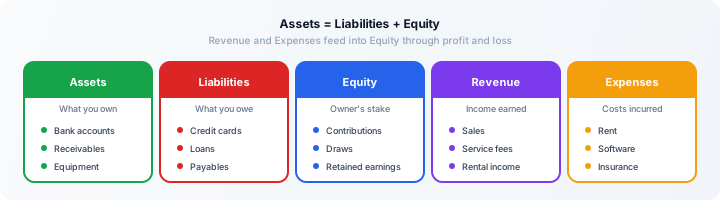
- Assets: what your business owns: bank accounts, receivables, property, equipment
- Liabilities: what your business owes: credit cards, loans, payables, sales tax collected
- Equity: the owner's stake: contributions, draws, retained earnings
- Revenue: income earned from operations: sales, service fees, rental income
- Expenses: costs incurred to run the business: supplies, rent, software, insurance
When you create a journal entry, every line references one of these accounts. The account type determines whether a debit increases or decreases the balance, and which financial report the account appears on.
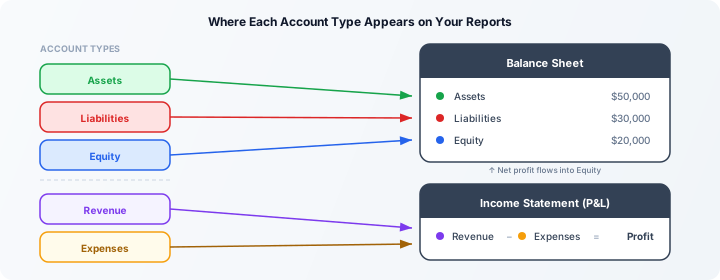
Why your chart of accounts matters
Before we get into the mechanics, here's why this is worth getting right. A well-organized chart of accounts pays off in three places:
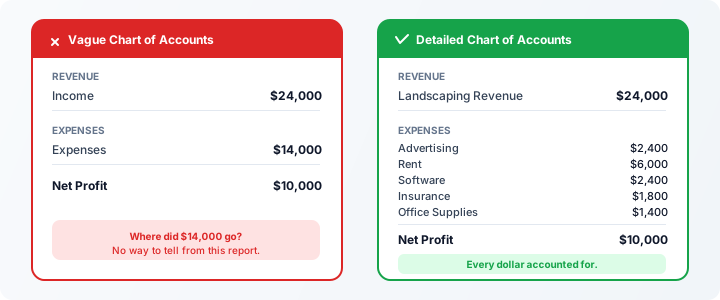
Reports that make sense. Your income statement groups revenue and expenses into meaningful sections based on account codes. If all your expenses share a single account, the report is one line: "Expenses: $14,000." If they're broken into Advertising, Rent, Software, and Insurance, you can see where the money is actually going.
Tax time is faster. Your accountant (or you) needs to identify deductible business expenses by category. "Office Supplies: $1,200" is a line item your CPA can work with; "Expenses: $14,000" is a shoebox they have to sort through.
Decisions get easier. When you can see that Software costs $800/month and Advertising costs $200/month, you know where to cut if cash is tight. A single "Expenses" line tells you nothing.
What Sedna gives you by default
When you create a new business in Sedna, the app generates a default chart of 39 accounts covering the most common categories. You don't need to build anything from scratch.
Here are the highlights:
| Type | Default accounts (examples) |
|---|---|
| Assets | Cash, Bank, Accounts Receivable, Equipment, Inventory |
| Liabilities | Accounts Payable, Credit Card, Loan, Sales Tax Payable, Payroll Liabilities |
| Equity | Owner Equity, Retained Earnings |
| Revenue | General Income, Other Income |
| Expenses | Advertising, Bank Fees, Insurance, Legal Fees, Office Supplies, Rent, Software, Utilities, and more |
Most businesses will use this default chart as-is for the first few months and add accounts as needs arise. You don't need to define every account upfront; the default chart is the same for all business types (LLC, corporation, sole proprietorship, partnership). Sedna adjusts equity labels based on your business type, but the underlying account structure is identical.
Chart of accounts numbering system
Every account has a five-digit code. The first digit tells you the account type:
| First digit | Type | Example codes |
|---|---|---|
| 1 | Assets | 10000 Cash, 10100 Bank, 15000 Equipment |
| 2 | Liabilities | 21000 Accounts Payable, 23000 Credit Card |
| 3 | Equity | 30000 Owner Equity, 31000 Retained Earnings |
| 4 | Revenue | 40000 General Income, 41000 Other Income |
| 5 | Expenses (COGS) | 50000 Cost of Goods Sold |
| 6-7 | Expenses (operating) | 61000 Advertising, 72000 Rent, 73000 Utilities |
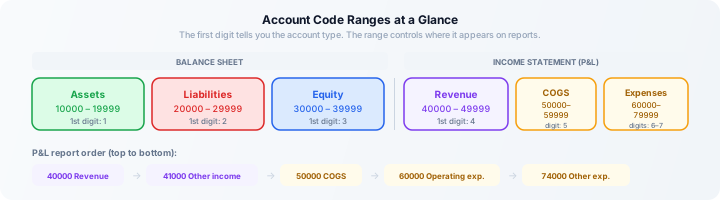
This numbering isn't arbitrary. It controls where each account appears on your profit and loss report. Revenue codes in the 40000 range appear at the top. Cost of goods sold (50000s) comes next. Operating expenses (60000–73999) follow. Other expenses like interest (74000–79999) appear at the bottom. That ordering means your P&L reads naturally from income through costs to profit, as long as your codes are in the right range.
For the full breakdown of how code ranges map to P&L sections, see Understanding your chart of accounts.
How to customize your chart of accounts
The default chart covers general categories, but your business probably has costs that deserve their own line. The rule of thumb: if an expense is large enough to notice, recurring enough to track over time, or distinct enough that your CPA would want it separated for tax purposes, give it its own account. You won't regret having too much detail on your P&L; you will regret having too little.
Ask yourself: "If I were reviewing my year-end P&L, would I want this expense broken out as its own line?" If yes, create the account. If you're not sure, wait until the category starts mattering. You can always add accounts later without losing any existing data.
Here are common additions by business type:
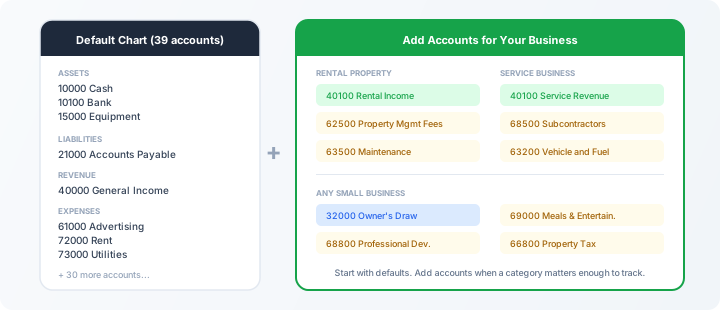
Rental property LLC
- Rental Income (revenue, 40100): separates rental income from General Income so your P&L shows your core business revenue on its own line
- Property Management Fees (expense, 62500): tracks what you pay your property manager, which is deductible
- HOA Fees (expense, 62600): a recurring cost that adds up fast across multiple properties
- Maintenance and Repairs (expense, 63500): deductible maintenance costs, kept separate from capital improvements
- Property Tax (expense, 66800): deductible and often required on Schedule E
- Depreciation (expense, 76500): the annual depreciation deduction on your rental property
Service business (landscaping, consulting, etc.)
- Service Revenue (revenue, 40100): to distinguish your core revenue from one-off "other income"
- Subcontractor Payments (expense, 68500): tracks 1099 payments that you'll need to report at year-end
- Vehicle and Fuel (expense, 63200): deductible if the vehicle is used for business
- Tools and Supplies (expense, 71500): separates job-specific supplies from general office supplies
Any small business
- Owner's Draw (equity, 32000): tracks withdrawals separately from the Owner Equity rollup, so you can see how much you've taken out over the year
- Meals and Entertainment (expense, 69000): already in the default chart, but worth knowing about since it has a specific 50% deduction limit
- Professional Development (expense, 68800): courses, conferences, and certifications
How to add an account in Sedna
- From the sidebar, open the Accounts page.
- Click Add Account (or press
nto open the dialog quickly). - Choose the account type (Asset, Liability, Equity, Income, or Expense).
- Enter a five-digit code, making sure the first digit matches the type (1 for assets, 2 for liabilities, etc.).
- Give it a clear name. "Property Management Fees" is better than "PM" or "Prop Mgmt."
- Save.
You can also rename or deactivate existing accounts. Deactivating hides an account from dropdowns but preserves its history, which is useful if you stop using a category but don't want to lose old transactions.
For the full walkthrough on subaccounts and code ranges, see Understanding your chart of accounts.
Common chart of accounts mistakes
Putting everything in one account. If all your expenses go into "Expenses" or "Miscellaneous," your P&L is useless and your accountant has to recategorize everything at year-end. When in doubt, create a specific account.
Wrong first digit for the type. An account coded 60000 but set to type "Income" will appear in the wrong place on reports. The first digit should always match: 1 = Asset, 2 = Liability, 3 = Equity, 4 = Revenue, 5–7 = Expense.
Too many accounts too soon. The opposite extreme: creating 200 accounts before you've recorded a single transaction. Start with the defaults, run for a month, then add accounts for the categories that actually matter. You can always split a broad category later.
Confusing expenses with assets. A $50 keyboard is an expense. A $15,000 vehicle is an asset that gets depreciated. If a purchase will last more than a year and costs more than your capitalization threshold (often $2,500), it's probably an asset, not an expense. Ask your CPA if you're unsure.
Note
Sedna won't let you create two accounts with the same code. If you get a "duplicate code" error, check the existing chart for conflicts. You may already have an account for what you need.
Key takeaway
Your chart of accounts is the skeleton your entire bookkeeping hangs on. Sedna gives you a sensible default of 39 accounts for any small business. Start there, add accounts when a category matters enough to track separately, and keep the first digit of every code aligned with the account type. The numbering drives your reports, and clear reports drive better decisions.
Frequently asked questions
How many accounts should a small business have? Most small businesses do well with 40–60 accounts. The default 39 covers the basics; you'll typically add 5–20 more for your specific industry. If you're over 100, you may be over-categorizing. Consolidate accounts that you rarely use or that could be tracked with descriptions instead.
Can I change my chart of accounts later? Yes. You can add, rename, or deactivate accounts at any time. Deactivating preserves transaction history. Avoid changing an account's type after it has transactions; create a new account with the right type instead.
What's the difference between an account and a subaccount? A subaccount is nested under a parent account and rolls up into it on reports. For example, you might have "Utilities" as a parent with "Electricity," "Water," and "Trash" as subaccounts. The totals roll up, but you can still see the breakdown. See Understanding your chart of accounts for details.
Do I need a different chart of accounts for each entity? Yes. Each business entity in Sedna has its own chart of accounts. The default chart is applied to each new entity, and you customize each one independently. This keeps your books clean and your reports accurate per entity.
Should I match my accountant's numbering? If your CPA uses a specific numbering scheme, it's worth aligning with them. This makes year-end reconciliation easier. Share your Sedna chart with your accountant early so you can agree on the structure before you're deep into the year.
Related
- Understanding your chart of accounts: adding accounts, choosing codes, subaccounts
- Journal entries: 5 patterns every business owner uses: the entries your accounts will hold
- Accounting basics: the equation behind all five account types
This article is intended for informational purposes only and does not constitute financial or accounting advice. Consult a qualified accountant or CPA for guidance specific to your situation.
Try it in Sedna
See this in action in the app. Open in app