
Journal Entries: 5 Patterns Every Business Owner Uses
How to create journal entries for revenue, expenses, owner draws, transfers, and credit card charges, with step-by-step examples and the draft-to-posted workflow.
7 min readPublished · Updated
You know the transaction happened; now you need to get it into your books. A journal entry is how you do that. It's the basic unit of double-entry bookkeeping: every financial event gets recorded as an entry with two sides that balance. If that's new, start with Single entry vs. double entry.
The real question isn't why journal entries exist; it's which accounts do I debit and which do I credit? That's what this guide answers. Five patterns cover the vast majority of day-to-day bookkeeping, and once you've got them down, recording entries becomes second nature.
What is a journal entry?
Every journal entry has a header and one or more lines.
The header captures the context: a date, a description of what happened (required), an optional reference number (like an invoice or check number), and optional internal notes. You also choose a status: draft or posted.
Each line specifies an account from your chart of accounts and either a debit or a credit amount. You need at least two lines, and the total debits must equal the total credits: the same accounting equation that underpins all bookkeeping. Sedna enforces this: the save button stays disabled until the entry balances.
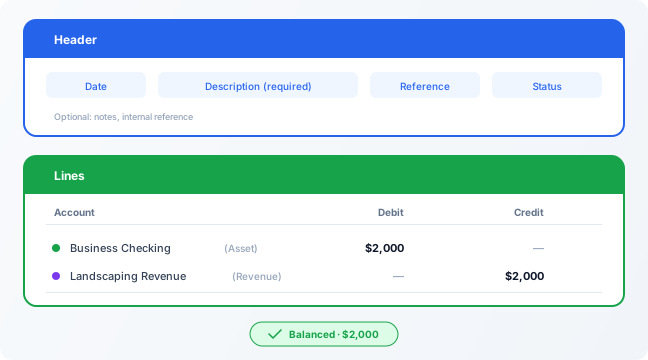
That's the entire structure. The dialog you'll use to create entries in Sedna follows this same layout: header fields at the top, lines table below, balance indicator at the bottom.
How to create a journal entry in Sedna
Open the Transactions page from the sidebar and click Add journal entry, or press n on your keyboard.
Fill in the date and a description. Make it specific enough that you'll recognize it months later: "March rent from unit 4B, 123 Oak St" beats "rent."
Next, add your first line. Click the account picker to open a searchable list of all your accounts, grouped by type: Assets, Liabilities, Equity, Income, and Expenses. You can type to search by account name, account code, or type. For example, typing "check" finds "Business Checking," and typing "6" finds all expense accounts starting with 6. Select the account, enter a debit or credit amount, then add the second line.
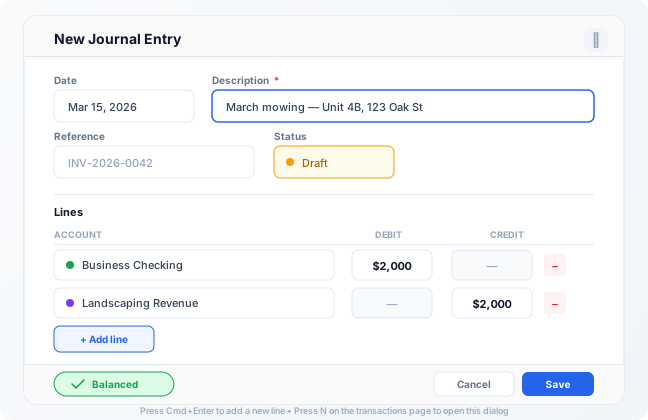
As you type, Sedna shows a live balance indicator. When total debits equal total credits, it turns green and the save button becomes active. If the numbers don't match, you'll see exactly how far off you are.
You can also attach receipts, invoices, or contracts directly to the entry. Expand the Receipts section in the dialog to upload files before saving. Your supporting documentation lives right next to the transaction it belongs to, so when tax season arrives or an auditor asks "what was this payment for?", the answer is one click away.
Note
Press Cmd+Enter (or Ctrl+Enter on Windows) inside the dialog to quickly add a new line without reaching for the mouse.
Templates for recurring entries
If you record the same entry every month (rent collection, insurance, a recurring subscription), you don't have to re-create it from scratch each time. Use Save as template from the row menu on any existing entry. Next time, create a new entry from the template and only adjust the date and amount if needed. This is especially useful for owner draws, loan payments, or any entry where the accounts stay the same but the numbers might change.
When you don't need a manual entry
If you've connected a bank account or imported a credit card statement through Sedna, many transactions are created automatically. You'll categorize and approve them rather than typing journal entries by hand. Manual journal entries are for transactions that don't flow in through an integration: owner draws, internal transfers, year-end adjustments, or anything your bank doesn't know about.
Draft, posted, and reversed
Not every entry needs to hit your reports immediately. Sedna gives you three statuses:
Draft: the entry is saved but doesn't affect account balances or reports. Use drafts when you're entering a batch of transactions and want to review them before they count. You can edit a draft freely.
Posted: the entry is live. It affects your account balances and shows up on your financial reports (income statement, balance sheet, and cash flow statement). You can still edit a posted entry if you need to correct something.
Reversed: when a posted entry was wrong and you need to undo it, use Clone reverse entry from the row menu. Sedna creates a new entry with the debits and credits swapped, effectively zeroing out the original. The reversed entry can't be edited; it's a permanent record that the correction happened.
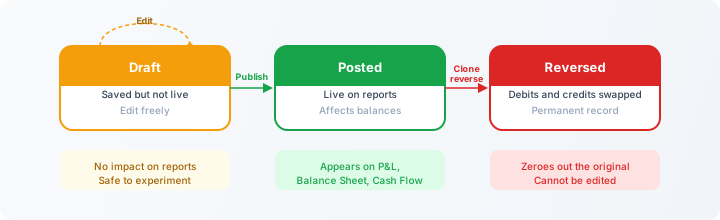
The distinction matters at month-end. You can enter transactions throughout the month as drafts, review them in a batch, then publish everything at once. Your reports stay clean until you're ready.
Journal entry examples: 5 patterns for everyday bookkeeping
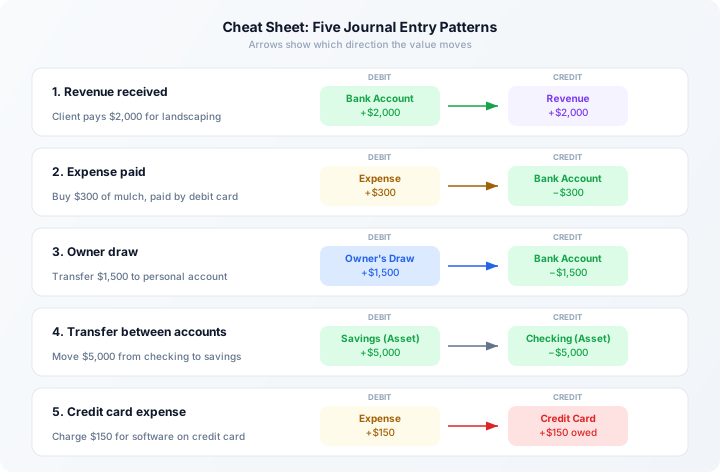
Most day-to-day entries follow one of five patterns. We'll use the same landscaping LLC from the single vs. double entry guide to keep the examples concrete.
1. Revenue received
A client pays you $2,000 for a landscaping project. Your bank account (asset) goes up, your revenue goes up.
| Account | Debit | Credit |
|---|---|---|
| Business Checking | $2,000 | |
| Landscaping Revenue | $2,000 |
2. Expense paid
You buy $300 of mulch and soil from a garden supply store, paid with your business debit card. Your expense goes up, your bank account goes down.
| Account | Debit | Credit |
|---|---|---|
| Supplies Expense | $300 | |
| Business Checking | $300 |
3. Owner draw
End of the month, and you transfer $1,500 from the business to your personal account. The business's cash goes down, and the owner's draw account records the withdrawal.
| Account | Debit | Credit |
|---|---|---|
| Owner's Draw | $1,500 | |
| Business Checking | $1,500 |
4. Transfer between accounts
You move $5,000 from checking to a business savings account to set aside money for a new mower. Cash moves between two asset accounts, so total assets stay the same.
| Account | Debit | Credit |
|---|---|---|
| Business Savings | $5,000 | |
| Business Checking | $5,000 |
5. Credit card expense
You charge $150 for accounting software on your business credit card. Your expense goes up and your credit card liability goes up, and no cash moves yet.
| Account | Debit | Credit |
|---|---|---|
| Software Expense | $150 | |
| Business Credit Card | $150 |
When you pay the credit card bill later, that's a separate entry: your liability goes down and your cash goes down. In this example, the $500 payment covers the software charge plus other purchases on the card:
| Account | Debit | Credit |
|---|---|---|
| Business Credit Card | $500 | |
| Business Checking | $500 |
Note
Every pattern follows the same rule: debits on the left, credits on the right, totals must match. The only thing that changes is which accounts are involved.
Multi-line entries
Some transactions touch more than two accounts. Say you finish a $3,000 landscaping job, but $450 of the client's payment is sales tax you collected on their behalf. That's three things happening at once: your bank goes up by $3,000, your revenue goes up by $2,550, and your sales tax liability goes up by $450.
| Account | Debit | Credit |
|---|---|---|
| Business Checking | $3,000 | |
| Landscaping Revenue | $2,550 | |
| Sales Tax Payable | $450 |
Total debits: $3,000. Total credits: $2,550 + $450 = $3,000. Balanced.
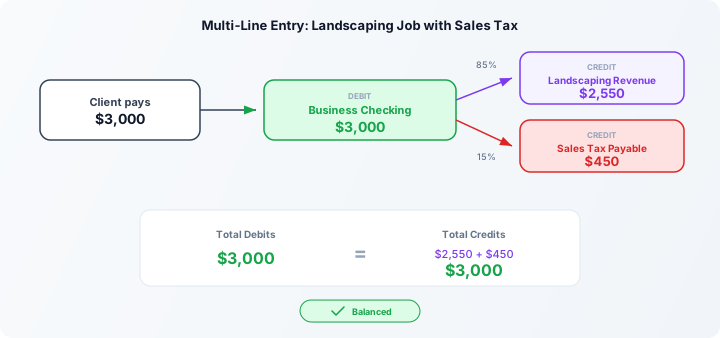
Sedna handles entries with as many lines as you need; the balance rule stays the same regardless of how many accounts are involved.
Writing descriptions that help future you
The description field is the first thing you'll read when you come back to an entry months later. A few habits that pay off:
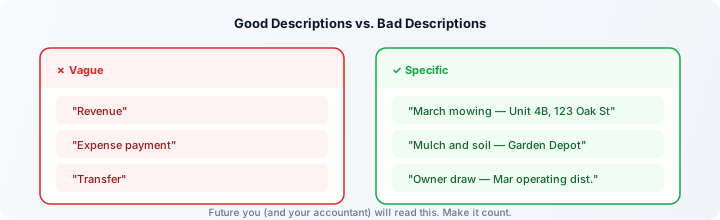
- Be specific: "March mowing, Unit 4B, 123 Oak St" is useful. "Revenue" is not.
- Include the counterparty: "Payment from Riverside Properties" tells you who. "Client payment" does not.
- Use the reference field for invoice numbers, check numbers, or confirmation codes. It keeps the description clean and gives you a second way to search.
- Attach the receipt while you have it. Digging through email or a shoebox of receipts six months later is a problem you can avoid entirely.
Key takeaway
Every journal entry follows one rule: total debits equal total credits. Start with the five patterns in this guide; they'll cover most of what you encounter. Use drafts until you're confident, save templates for entries you repeat, and write descriptions your future self will thank you for. Once these habits are in place, the next step is organizing your chart of accounts so every entry lands in the right place.
Frequently asked questions
What's the difference between a debit and a credit? A debit increases assets and expenses; a credit increases liabilities, equity, and revenue. They're just labels for the two sides of every entry. For a deeper explanation, see Accounting basics.
Can I edit a posted journal entry? Yes. Sedna lets you edit posted entries directly. If you need a clean audit trail instead, use Clone reverse entry to zero out the original, then create a corrected entry.
Do I need to create a journal entry for every transaction? No. If you've connected a bank feed or imported statements, Sedna creates transactions for you automatically. Manual journal entries are for anything that doesn't come in through an integration: owner draws, internal transfers, adjustments, and so on.
How many lines can a journal entry have? As many as you need. The only rule is that total debits must equal total credits.
What's the best way to handle recurring entries? Use Save as template on any existing entry. Next time, create from the template and adjust the date and amounts.
Related
- Single entry vs. double entry accounting: why double entry matters
- Accounting basics: the accounting equation behind every entry
- Setting up your chart of accounts: the accounts your entries will reference
This article is intended for informational purposes only and does not constitute financial or accounting advice. Consult a qualified accountant or CPA for guidance specific to your situation.
Try it in Sedna
See this in action in the app. Open in app